California AB 1041: What Health Plans and Credentialing Delegates Need to Know Before 2027 and 2028

Varun Krishnamurthy
September 28, 2026
Many payors rely on provider rosters to decide who is allowed to see patients, who can bill, and which claims get paid. The problem with this is that if a roster is incomplete, outdated, or formatted incorrectly, you will get denied claims, delayed payments, or urgent "why isn't this provider active?" emails.
In this article, we'll explain how provider roster submission works. We will cover what payors expect, what information is required, and how often rosters should be submitted.
We will also look at how credentialing platforms like Assured help organizations organize credentialing data and payor rosters, so updates are accurate, timely, and easier to manage.
A provider roster is a standardized file sent to payors to add, update, or remove providers from a network. It includes key provider details such as name, identifiers, specialties, locations, and effective dates.
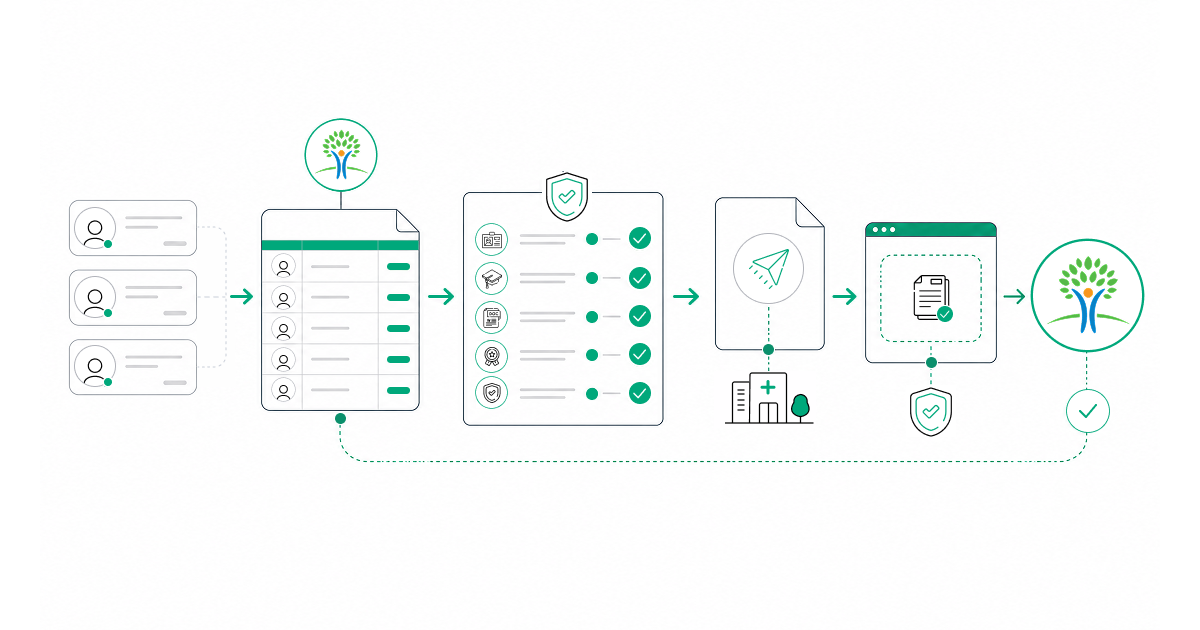
Under delegated credentialing agreements, roster submission replaces individual provider enrollment applications. So rather than submit forms to one provider at a time, a single roster can update or enroll dozens of providers at once, making it the primary mechanism payors use to activate providers for billing and patient care.
Submitting a roster or individual applications depends on your relationship with the payor and how enrollment is structured.
Roster submission applies when you have a delegated credentialing agreement with the payor, you are a large group using the payor's group enrollment process, or the payor accepts roster files for adding or updating providers in its network. In these cases, the roster replaces individual enrollment forms and allows multiple providers to be added or updated at once.
Individual applications are still required when no delegation agreement is in place, you are setting up an initial contract with a new payor, the payor requires CAQH-based enrollment for each provider, or the provider is a solo practitioner or part of a small group without delegation.
Roster submission is a privilege earned through delegation. It speeds up enrollment, but only when credentialing processes are compliant and up to date.
What information is needed on a provider roster? The answer is everything. Everything needed to identify the provider, confirm eligibility, and tell the payor exactly what action to take. Below is the full checklist most payors require.
These demographics define the provider's identity and link them to the correct billing system.
| Field | Required | Notes |
|---|---|---|
| Provider Legal Name | Yes | Must match the license and credentialing file exactly |
| Individual NPI | Yes | 10-digit Type 1 NPI |
| Group/Billing NPI | Yes | Type 2 NPI if billing under a group |
| Tax ID (TIN) | Yes | Entity TIN used for billing |
| CAQH ID | Most payors | Used to reference CAQH ProView |
| Date of Birth | Yes | Identity verification |
| Social Security Number | Sometimes | Often last 4 digits only |
Name mismatches, missing NPIs, or incorrect TINs are common reasons why rosters are rejected. Use the NPI Lookup Tool to verify provider identifiers before submission.
These confirm that the provider is licensed, qualified, and eligible to practice.
| Field | Required | Notes |
|---|---|---|
| State License Number | Yes | Primary practice state |
| License State | Yes | Must align with the location |
| License Expiration Date | Yes | Must be active at submission |
| DEA Number | If applicable | Required for prescribers |
| DEA State | If applicable | State of registration |
| Primary Specialty | Yes | Payor-recognized specialty |
| Secondary Specialty | If applicable | Additional specialties |
| Board Certification | If claimed | Board name and status |
| Provider Type | Yes | MD, DO, NP, PA, LCSW, etc. |
Expired licenses or specialty mismatches can trigger follow-up requests. Review our FAQ on DEA numbers if you manage prescribers.
This information determines where services can be billed.
| Field | Required | Notes |
|---|---|---|
| Practice Address | Yes | Full street address |
| City, State, ZIP | Yes | Valid USPS format |
| Phone Number | Yes | Public contact number |
| Fax Number | Sometimes | Still required by some payors |
| Office Hours | Sometimes | Directory display |
| Accepting New Patients | Sometimes | Directory flag |
| Languages Spoken | Sometimes | Patient-facing listing |
These tell the payor what to do.
| Field | Required | Notes |
|---|---|---|
| Practice Address | Yes | Full street address |
| City, State, ZIP | Yes | Valid USPS format |
| Phone Number | Yes | Public contact number |
| Fax Number | Sometimes | Still required by some payors |
| Office Hours | Sometimes | Directory display |
| Accepting New Patients | Sometimes | Directory flag |
| Languages Spoken | Sometimes | Patient-facing listing |
A complete roster must match exactly with credentialing records. Even small inconsistencies can delay provider activation or billing.
Many teams struggle with roster submissions because their provider data is wrong. While there is no standard roster format, there are certain format requirements you need to know.
| Element | What Changes |
|---|---|
| File format | Some want Excel, others want CSV, text, or XML |
| Column order | One payor wants the provider name first, another wants it later |
| Field names | "Provider NPI," "Individual NPI," or "NPI1" |
| Date format | MM/DD/YYYY vs YYYY-MM-DD vs MMDDYYYY |
| Required fields | One payor requires SSN, another will reject it |
| Action codes | "A," "Add," or numeric codes |
| File naming | Exact naming rules |
| Header rows | Some require headers, others do not |
Most payors follow predictable patterns.
| Payor Type | Typical Format |
|---|---|
| UnitedHealthcare | Excel template via Link portal |
| Aetna | Varies by market, often CSV via Availity |
| Cigna | Excel template via provider portal |
| Blue Cross Blue Shield | Varies significantly by state plan |
| Medicare | PECOS for individual, CMS-855R for reassignment |
| Medicaid | State-specific formats and portals |
For payor-specific timelines, see our guides on UnitedHealthcare enrollment, Blue Cross Blue Shield enrollment timelines, and Medicare payor enrollment.
You can manage multiple roster submission formats by maintaining a single provider record, then exporting payor-specific versions. Checking files before submission catches issues early. Platforms like Assured's payor enrollment solution support this by keeping provider data centralized and handling payor-specific formatting.
You can submit a roster to a payor in several ways, depending on the payor's setup and your contracting arrangement. Some payors accept uploads through their portal. Others require secure file transfer, EDI transactions, or encrypted email.
To ensure your submission process is seamless, use platforms like Assured to handle roster submissions and tracking. This way, you don't miss anything once credentialing is complete.
Start by creating a list of providers who need roster actions. This list should include new providers, terminations, and updates such as location changes, taxonomy updates, and demographic corrections.
Before you prepare anything, confirm that each provider's credentialing status is up to date and complete. Then check that all required roster data is populated, especially NPI, license details, effective dates, and practice locations. Use the OIG LEIE Verification Tool to screen providers before adding them to any submission.
Export your provider data in the payor's required template. Apply the correct column mapping and field formatting. Make sure every record clearly shows the action type (add, term, update) and the effective date for the action. Name the file according to the payor's naming rules. Keep in mind that some portals may reject files due to naming or template mismatches.
Do not submit until the file passes certain basic checks: all required fields are populated, NPI is 10 digits and valid, licenses are active and not expired, dates are in the correct format, no duplicate records, and the file opens correctly and is not corrupted. Provider data validation tools can automate this step and reduce manual errors.
The submission method depends on the payor. Common options include portal upload, SFTP, encrypted email, and EDI via 834 file or proprietary transaction. Document the submission timestamp and keep any confirmation, ticket number, or portal receipt.
Do not assume a file is received just because you submitted it. Check for an automated acknowledgment, log into the portal to confirm it is marked as received, and note any immediate validation errors. If there is no confirmation within 48 hours, follow up.
Processing time usually takes 15 to 30 days. During this time, watch out for rejection notifications and respond quickly. Once processed, document the confirmed effective dates so you can connect your network status back to claims and scheduling.
Payors usually expect three types of roster activity: adds, terminations, and updates. Each has its own rules, timing, and risks.
Adding a provider to a payor roster should occur only after credentialing is complete. Before adding, the provider must be credentialed and approved by your credentialing committee, all required data documents must be collected and verified, and an effective date must be set based on payor policy.
Roster record requirements: action type Add (or payor-specific code), effective date as the requested network start date, and complete demographic, credential, and location information.
Typical timeline: Submit roster → Payor processes in 15 to 30 days → Provider becomes active and billable. Submitting too early or with missing data almost always leads to rejection or delayed activation.
Common reasons to terminate providers include: provider leaves the organization, provider relocates out of network, loss or restriction of credentials, contract ends, voluntary resignation, retirement, or deceased.
Roster record requirements: action type Term, termination date as the last active working day, and termination reason (required by most payors). All terminations should ideally be submitted before or immediately after the provider's last working day. When you delay, you risk claim denials.
You should update a provider's information when the following happens: address or phone number change, name change, new license or specialty, or additional practice location.
Roster record requirements: action type Update or Change, only the fields being updated, and effective date of the change. Some payors separate demographic updates from credential updates, so always confirm the correct process.
For each submission, track: payor name, submission date, file name, number of records (adds, terms, updates), confirmation number or acknowledgment, expected completion date, actual completion date, and rejection count.
Without this level of tracking, your team will lose visibility once a file leaves their system. Platforms like Assured automatically manage this tracking, so teams can see submission status and follow-ups in one place instead of chasing emails and portals.
| Payor Type | Typical Processing Time |
|---|---|
| Commercial (UHC, Aetna, Cigna) | 15 to 30 days |
| Blue Plans | 15 to 45 days (varies by state) |
| Medicare | 30 to 60 days |
| Medicaid | 30 to 90 days (varies by state) |
For a deeper look, see our guide on payor enrollment timeline management.
| Rejection | Cause | Resolution |
|---|---|---|
| Invalid NPI | NPI not in NPPES or deactivated | Verify in NPPES, correct or reactivate |
| Duplicate | Provider already exists | Confirm status, submit update instead |
| Missing field | Required field left blank | Populate field and resubmit |
| License expired | License past expiration | Renew license, then resubmit |
| Invalid TIN | TIN not recognized | Verify with IRS, correct data |
| Address invalid | Fails USPS validation | Standardize address format |
| Panel closed | Payor not accepting | Request exception or wait |
| Credential mismatch | Conflicts with CAQH or payor data | Reconcile data sources |
A rejection workflow moves a roster rejection from "error received" to "issue closed." First, the team receives the rejection notice. Next, it is categorized by reason: data issue, credentialing issue, or payor rule issue. Grouping rejections by type helps teams spot patterns instead of fixing the same mistake repeatedly.
Once categorized, the team researches the root cause and corrects the data at the source — because fixing only the export without fixing the underlying record almost guarantees the rejection will happen again.
The corrected record is then resubmitted in the next roster cycle and monitored until fully resolved.
Reconciliation is how you make sure your records and the payor's records still match. Without it: a provider may show as active with a payor but already be termed in your system, providers may be active in your system but missing from the payor, directory listings become inaccurate, claims get denied unexpectedly, and compliance audits reveal discrepancies.
Learn more about how provider directory management connects to reconciliation for health plans.
After each roster submission: compare what you submitted to the payor's confirmation or status report, confirm all additions were processed with the correct effective dates, confirm all terminations were applied, and flag any records that did not process or were processed incorrectly. If something did not go through, fix it right away — don't wait until the next cycle.
Request a full active provider roster from the payor and compare it to your internal active provider list. Look for ghosts (providers active with the payor but not in your records), gaps (providers in your system but missing from the payor), and mismatches (differences in address, specialty, or location).
Each discrepancy should be resolved through a corrective roster submission or by directly contacting the payor.
Once a year, run a full comparison of providers across all payors, spot-check directory listings for accuracy, and document the results. See what payors look at during credentialing audits to stay prepared.
Roster submission mistakes are rarely technical. They usually come from the same few errors repeated over and over.
Most payors have monthly cutoff dates, often around the 5th, 10th, or 15th of the month. If you miss that window, your providers will have to wait another full cycle. Add every payor deadline to your calendar and plan to submit two to three days early.
Uploading files with missing fields, bad dates, or invalid NPIs causes the payor to reject the file and you lose an entire month. Validate every file before submission — check required fields, NPI format, date formats, and license status.
Columns out of order, wrong date format, or wrong file type will get your submission rejected. Always use the payor's specific template, review format rules before submitting, and if unsure, test with a small batch instead of a full file.
Roster data that does not match CAQH or current credentials will be flagged and rejected. Sync with CAQH regularly, verify license currency before submission, and update provider records as changes happen. Read our guide on how to fix healthcare provider data compliance issues for a practical approach.
Unresolved rejections mean providers assume they are enrolled until claims start being denied. Review rejection reports immediately, track every rejection until resolved, and set alerts for items that sit too long.
No proof of what was submitted or when is a problem that surfaces during audits. Save all files, confirmations, and logs. If it is not documented, it cannot be defended.
It's easier to manage roster submissions when volume is low. Once scale increases, manual processes break down.
Manual roster management using spreadsheets, shared folders, and email tracking usually fails when any of the following apply: provider count grows beyond 50 to 100, you manage more than five payor relationships, rosters are submitted multiple times per month, provider turnover is high, or operations span multiple states. Learn more about why scalability matters in healthcare credentialing software.
| Capability | Benefit |
|---|---|
| Centralized provider database | One source of truth for provider data |
| Payor format templates | Automatically generate correct files |
| Data validation rules | Catch errors before submission |
| Submission tracking | Clear audit trail and status visibility |
| Rejection workflow | Structured resolution and resubmission |
| Deadline management | Automated alerts for cutoffs |
| Reconciliation tools | Compare your data to payor data |
| CAQH integration | Keep records aligned with CAQH ProView |
| Organization Size | Recommended Approach |
|---|---|
| Under 50 providers, 1–2 payors | Manual with strong templates |
| 50–200 providers, 3–5 payors | Credentialing software |
| 200+ providers or 5+ payors | Software or CVO support |
| High growth or limited staff | Outsource to a CVO |
For a direct comparison, see in-house vs outsourced credentialing and how to scale providers without hiring more staff.
Assured is designed for organizations that have outgrown manual roster work. It centralizes provider data, applies payor-specific formatting, validates files before submission, tracks deadlines, manages rejections, and supports reconciliation. The platform also offers CVO support to manage submissions.
As your roster volume grows, the goal is fewer errors, fewer delays, and full visibility through automated roster submissions.

Assured Health, Inc.
333 Seventh Ave, Suite 1701
New York, NY 10001